

• Contact
  • Home
  • App
  • Business
    • Finance
  • News
    • Entertainment
      • Games
      • Social Media
    • Hindi News
    • Misc
    • Trending
  • Tech
    • Gadgets Update
    • How To
    • iPhone
  • Hindi

Subscribe to Updates

Get the latest creative news from FooBar about art, design and business.

What's Hot

Beyond HPHT: Practical Thread Swaps to Meet the 2026 Preferred-Materials Target

August 27, 2025

Built-In Hygiene: Gral™ Protect Antimicrobial Threads for Wellness Wear & Uniforms

August 27, 2025

What Does the US-Issued Ban on State AI Rules Mean for Tech Innovation?

June 20, 2025
Facebook Twitter Instagram
SUBSCRIBE
  • Contact
  • Home
  • App
  • Business
    • Finance
  • News
    • Entertainment
      • Games
      • Social Media
    • Hindi News
    • Misc
    • Trending
  • Tech
    • Gadgets Update
    • How To
    • iPhone
  • Hindi
Home»Gadgets Update»Amazing Trick How to Turn Off Find My iPhone Without A Password
Gadgets Update

Amazing Trick How to Turn Off Find My iPhone Without A Password

Sayan DasBy Sayan DasAugust 16, 2020No Comments3 Mins Read
how to Turn Off Find My iPhone Without A Password
Share
Facebook Twitter Reddit Telegram Pinterest Email
Contents hide
Amazing Trick How to Turn Off Find My iPhone Without A Password
Turning off Find My iPhone
Turning off Find My iPhone without a password

Amazing Trick How to Turn Off Find My iPhone Without A Password

how to Turn Off Find My iPhone Without A Password
Before we learn how to turn off Find My iPhone without a password, let us look at the benefits of this feature. The Find My iPhone feature was introduced in the iOS 5 version in 2010. It is a great feature to keep track of your device should you happen to misplace or lose it. A GPS-based feature, Find My iPhone is an option you should definitely opt for to keep your device secure. You can simply use a Mac or any other iOS device to track your iPhone and attempt to recover it. You also have the options to lock it remotely, or erase all your data, or make it sound an alarm indicating that it is lost or stolen.
But you might not be comfortable allowing Apple continuous access to the location of your device. There are also several other situations where you should turn this feature off. Suppose you are selling off your old iPhone, or you are handing it down to another person to use. With the Find My iPhone feature turned on, another user cannot log in to their iCloud account. You should also know how to turn off Find My iPhone without a password in certain other cases.
 

Turning off Find My iPhone

Turning off the Find My iPhone feature on your iPhone itself or from a computer is easy. All you need to do is access the Settings menu and turn off the Find My iPhone option by sliding the toggle alongside it. But in both cases, you will have to enter your Apple ID and password as confirmation.
The feature is closely associated with an individual account and its main purpose is to prevent theft. So it is almost impossible to turn off Find My iPhone without a password. That would simply make it easy for thieves! But what if you are in an unusual situation where you have to do just that?
 

Turning off Find My iPhone without a password

If you fall into the unfortunate situation where you have forgotten your password or need to turn off the Find My iPhone feature without a password, there are some workarounds.
 
Your first option is to contact your seller and ask for your Apple password. You can find their details by going to Settings > [your name]/System Preferences. The Apple ID email will be displayed and you can send an email request.
 
Secondly, if you are not the owner of the Apple ID in question and still need to disable Find My iPhone, you will have to reach out to the Apple customer care. Find the customer care numbers of your country/city and call them. There is, however, no guarantee that this process will work out.
 
And lastly, if you are the owner of the iPhone and simply have forgotten your password, follow these steps:
  1. Visit appleid.apple.com on a computer.

Open appleid.apple.com

  1. Click the button “Forgotten your Apple ID or password?”

Enter Apple Id, pwd, Conatact no

  1. Enter your Apple ID. Click “Continue.”
  2. Enter your phone number. Click “Continue” again.
  3. Apple will send a verification code to your phone. Enter it and reset your password.
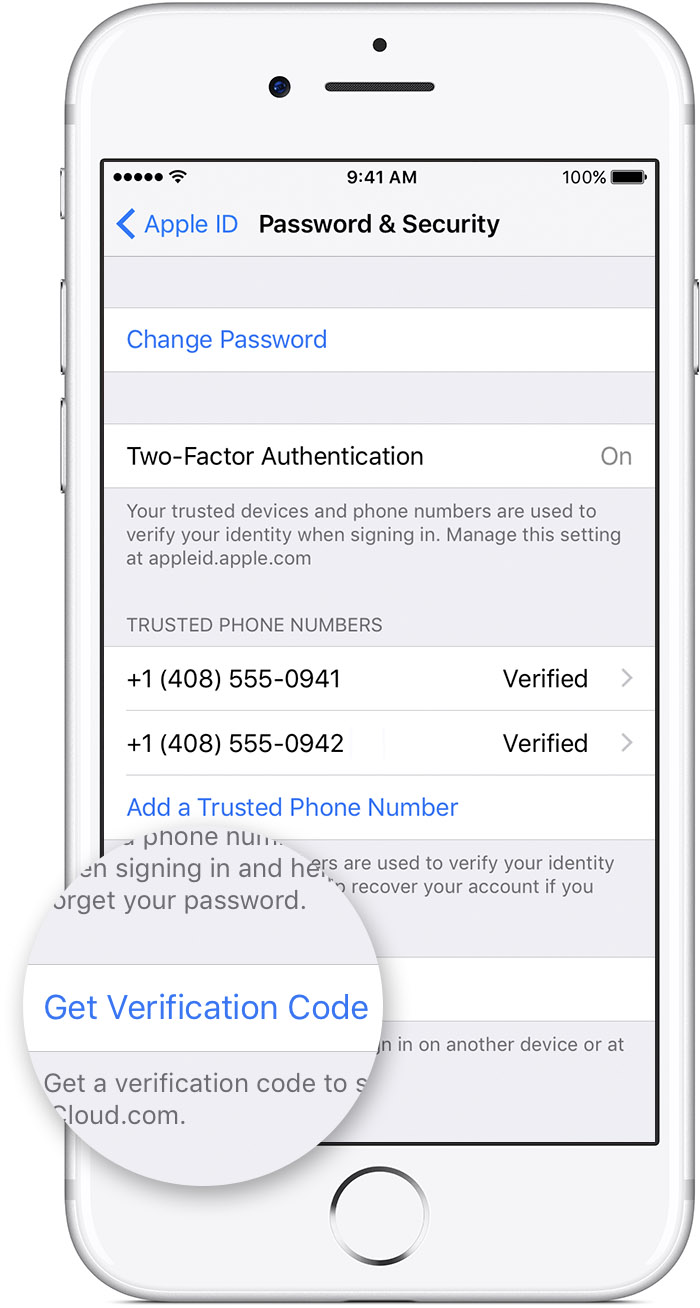
Enter it and reset your password

  1. Use your new password to turn off Find My iPhone using any iOS device or a computer.
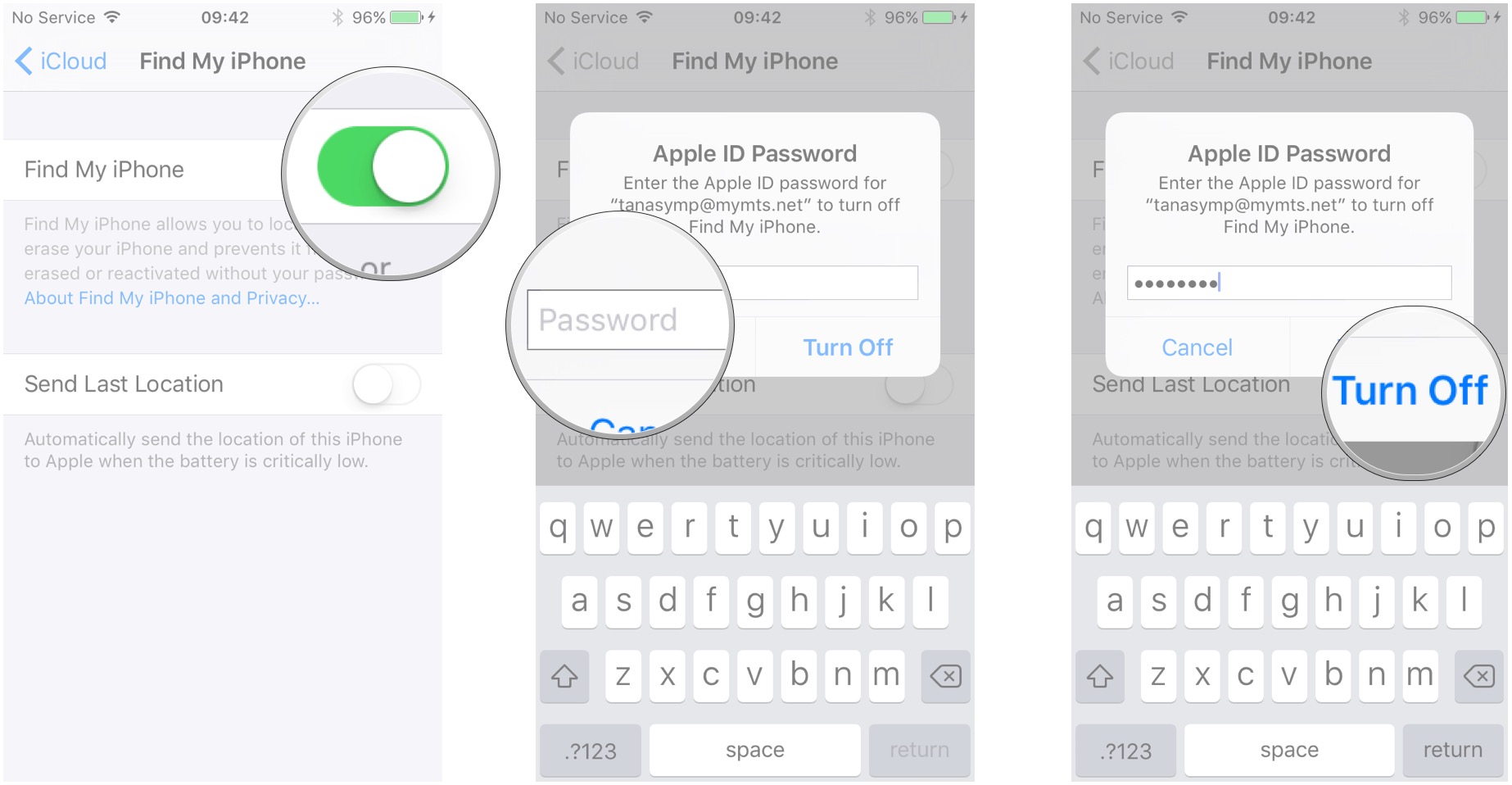
Use your new password to turn off Find My iPhone using any iOS device or a computer

Those are the methods of how to Turn off Find My iPhone without a password. It is advised always to use a password that you will remember and not come into this kind of situation in the first place. But even if you do, there are ways around it.


How to Turn Off Find My iPhone Without A Password Turning off Find My iPhone Turning off Find My iPhone without a password
Share. Facebook Twitter Pinterest LinkedIn Telegram Reddit Email
Previous ArticleAwesome Techniques of How to Change Voicemail on iPhone
Next Article Facebook will once again bring new feature in Tiktok’s competition, will be different from reels
Sayan Das

I have a penchant for writing on a variety of topics ranging from Technology to Psychology. With a Masters in Mass Communication and good command over the English language, I specialize in both fiction and non-fiction writing. When I am not blogging, I write and translate stories for children.

Related Posts

Dealing with Competitors Posting Negative Reviews

December 12, 2024

Unleashing the Thrill: A Deep Dive into RAJAGACOR – Your Ultimate Online Gaming Destination

January 2, 2024

How Architectural Tinting Can Enhance Your Building’s Energy Efficiency

October 17, 2023

Empowering Your Business with Jira Templates and Bug Ticket Templates

October 11, 2023

Exploring Font Styles: Unveiling the Power of Serif and Sans Serif Fonts

June 19, 2023

Testing Angular Web Applications: Strategies and Tools

June 17, 2023
Demo
Stay In Touch
  • Facebook
  • Twitter
  • Pinterest
  • Instagram
  • YouTube
  • Vimeo
Don't Miss

Beyond HPHT: Practical Thread Swaps to Meet the 2026 Preferred-Materials Target

By varshaAugust 27, 2025

HPHT lists help us say “no” to bad stuff. But stopping harm is only half…

Built-In Hygiene: Gral™ Protect Antimicrobial Threads for Wellness Wear & Uniforms

August 27, 2025

What Does the US-Issued Ban on State AI Rules Mean for Tech Innovation?

June 20, 2025

Dealing with Competitors Posting Negative Reviews

December 12, 2024

Subscribe to Updates

Get the latest creative news from SmartMag about art & design.

About Us
About Us
Our Picks

Dealing with Competitors Posting Negative Reviews

December 12, 2024

Exploring the Evolution of Auto Tint Technology: A Glimpse into the Future of Vehicle Enhancement

June 10, 2024

Top 25 Flowers to Send to Your Girlfriend and Celebrate Her Birthday in India

June 7, 2024
Facebook Twitter
  • Home
  • TERMS AND CONDITIONS
  • Submit Guest Post | Write For Us
  • Cookie Policy
  • DISCLAIMER
  • Contact Us
© 2026 SET NEWS BOX. All Rights Reserved. | scoopifyowl@gmail.com

Type above and press Enter to search. Press Esc to cancel.