



iOS 14 has more home screen customization than ever before. Learn how to customize your iPhone’s wallpaper, decorate your home screen, and set up widgets to make your iPhone more personal.
One of the best ways to set up your iPhone is to customize it to suit your style. By allowing you to use new widgets and flexible panels, iOS 14 takes you one step further, allowing you to speed up operations or gather information at a glance. We are here to teach you how to take advantage of some simple customization options in iOS 14.
This guide starts with the most basic things and guides you through some more advanced features, so feel free to go to the places that are most comfortable for you!
Wallpaper
Apple offers high-quality wallpapers for your iPhone, which will make it harder to find yours. Here’s how to use one of the Apple Wallpapers on your phone.

Setting the wallpaper in iOS 14
How to set your wallpaper in iOS 14
- Open Settings
- Tap the wallpaper
- Tap Select New Wallpaper
- Choose Dynamic, Stills, or Live
- Tap the wallpaper you want to select
- Swipe, pinch, and zoom to set the image to your liking
- Tap set
- Choose whether it is your lock screen, home screen or both
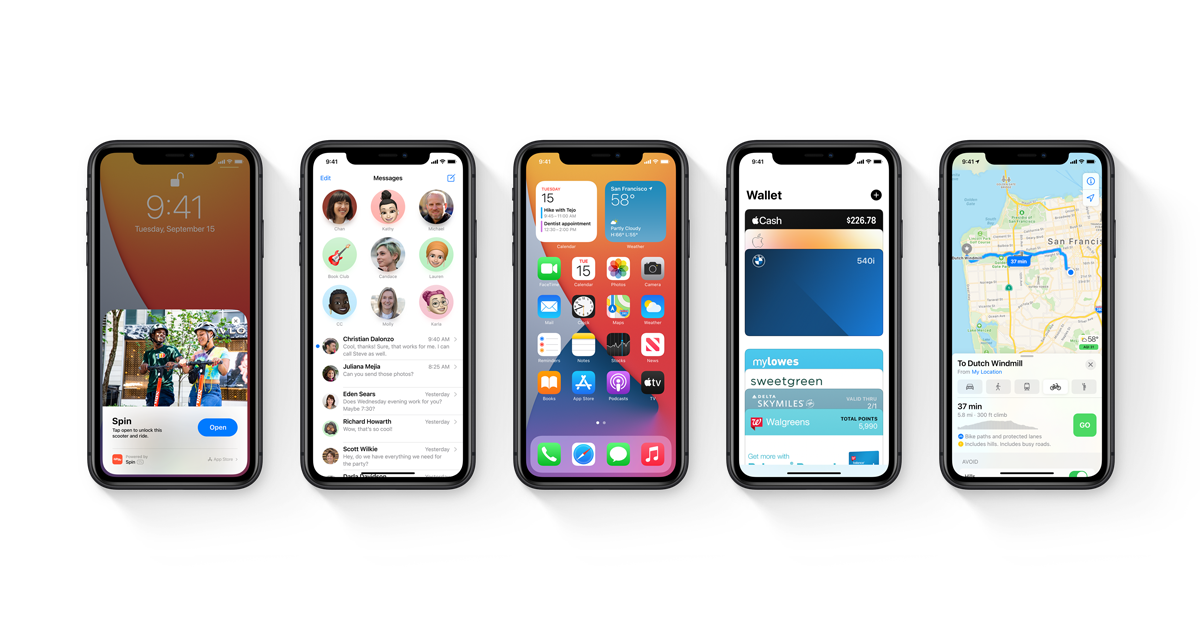
Using custom wallpaper is always an option, and it doesn’t make a big difference in iOS 14. Here’s a quick update on how to set custom wallpaper on your iPhone.
Setting custom wallpaper in iOS 14
How to set custom wallpaper in iOS 14

- Make sure the image you want to use is saved in your iPhone photo album
- Open photos
- Tap on the photo you want to use
- Press the share button
- Scroll down and click Use as wallpaper
- Swipe, pinch, and zoom to set the image to your liking
- Tap set
- Choose whether it is your lock screen, home screen or both
IOS 14, like previous versions, allows you to use Perspective Zoom. When you toggle, your iPhone wallpaper moves as you tilt your screen. It consumes slightly more battery than the toggled one, so it shuts off automatically when the low power mode is on.
Widgets
The latest version of iOS brings amazing features – widgets! Widgets provide slightly more sophisticated functionality, such as tiles and icons that you can place on your home screen.
For example, adding a music widget allows you to easily see what you last heard and go back to your favorite playlists.
Adding widgets to your home screen
How to add widgets to your home screen in iOS 14
- Tap and hold on your home screen until the icons start playing
- Press + in the upper left corner
- Scroll down to find the widget you want to use
- Tap the widget you want to add
- Scroll left or right to resize the widget to the size you want
- Tap Add Widget
- Drag to your widget location
:strip_exif(true):strip_icc(true):no_upscale(true):quality(65)/cloudfront-us-east-1.images.arcpublishing.com/gmg/SHNUZVKFNBHZZLK3ZSX74P3B44.png)
In fact, it is possible that you do not want to use Apple’s official Apple widgets. App developers who allow you to create your own widgets have started releasing their own apps and we hope to get plenty in short order.
Currently, the favorite Widgetsmith, you can easily download from the App Store here. Here is a brief guide on how to use Widgetsmith to create a custom widget.
Create your own widgets with Widget Smith
How to create your own widgets with Widgetsmith

- Download and open Widgetsmith
- Tap the small widget
- Scroll through it and tap the widget you want to create. (E.g. lunar phase)
- Tap and hold on your home screen until the icons start playing
- Press + in the upper left corner
- Scroll down the small widget and tap
- Tap Add Widget
- Drag to your widget location
- Widget Smith Press and hold the widget
- Tap the Edit Widget
- Select the widget you created
Custom icons
For those of you who are comfortable using the shortcut feature, there is another thing you can do to customize your iPhone home screen – create and use custom icons for apps. Since you are running the app via a shortcut rather than directly, there may be a slight delay – especially on older iPhones. However, this is currently the only way Apple approves setting your own custom icons.
We won’t Helps you create or get custom icons, so make sure you have the image you want to download to your iPhone’s photo album.
How to set custom icons for iOS 14 apps
- Open the shortcuts
- Press +
- Press Add Action
- Tap Scripting
- Tap Open Application
- Tap the app you want to customize
- Enter the application name
- Tap Done
- Tap …
- Tap … (again)
- Tap Add to Home Screen
- Tap the icon below the home screen name and icon
- Select an image from your camera roll
- Press Add
