


How to Find My iPhone if iPhone suddenly goes missing

Well, this story isn’t anything you haven’t heard before! There are those of us who take extreme care of our gadgets. And then there are those who are just careless! And, arguably, by no fault of theirs, their most priced iPhone suddenly goes missing! Sometimes you just get unlucky and lose your iPhone, or it gets stolen. And then, inevitably, panic sets it! So what to do in such a situation? Well, knowing how to find My iPhone will help you out of a difficult situation like this.
Find My iPhone is a feature in iPhones introduced iOS 5 onwards that helps you keep track of your iPhone when you have lost it. You can not only locate it but also lock or delete all your data remotely via iCloud or any iOS device. The steps of how to find My iPhone are easy to follow and highly beneficial. All you need to do is set it up during activating your device and then rest assured that even if your iPhone is lost or stolen, you will have a way to keep all your data secure.
The Find My iPhone feature also works for locating other lost iOS devices like iPod, iPad, and Mac. Although it does not guarantee that you will get your lost device back, it assures that your data and privacy is secured. Now let us look at the various steps involved in how to find My iPhone.
Before using find my iPhone
Before you get on to setting up Find My iPhone, here are certain requirements that you should check for first:
- Your iPhone must be running on iOS 5 or a later version. This feature will also work for your other iOS devices, so check their iOS versions as well.
- You must have an iCloud account. Devices other than your iPhone have to be connected to a wireless network so as to be able to locate them.
How to set up find my iPhone
The Find My iPhone feature is already available on your iPhone and all you have to do is turn it on. Follow these steps:
- Swipe down from the middle of the screen to show the spotlight search.
- Enter and find the “Find My iPhone” option. Turn it on. (In devices running on iOS 13, this option can be found in the Find My app feature.)
- Open the app. Log in with your Apple ID.
- From your Home screen, go to Settings > [your name] > iCloud.
- Scroll down to the “Find My iPhone” option and tap it. Turn on Send Last Location.
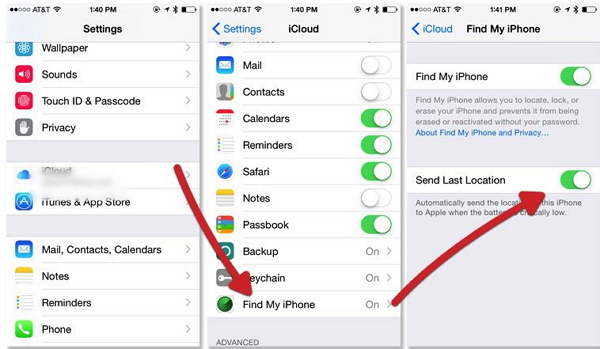
Your paired devices will also be automatically set up with this feature when you activate it.
How to use Find My iPhone
Now that you know the steps involving how to find My iPhone, let us look at how to use the feature. Find My iPhone not only helps your track down your iPhone when it is misplaced or stolen but also allows you to lock it remotely and delete all data on it. To prevent misuse or unauthorized access to your iPhone, you have to enter your Apple ID and password and gain remote access to your iPhone. Use the Find My iPhone feature to turn off the option and erase your device or lock it until you retrieve it.
If you have unfortunately lost your iPhone or it has been stolen, then follow these steps:
- Log on to iCloud.com on a computer or open iCloud on another iOS device. (The Find My iPhone feature should already be activated for this to work.)
2. Go to the Find My iPhone option and enter your Apple ID credentials.
3. From the list of devices, choose the device that is lost or stolen. You will now be able to view its location.
Use the additional options to either erase your iPhone or cause it to play a high-pitched sound. The latter option indicates that it is lost or stolen. You can choose to activate the Lost Mode to remotely lock your iPhone so as to prevent misuse. You can make a contact number appear on the screen of your iPhone, so that you may be contacted.
How to find my Mac
You can track down your Mac as well in case it gets misplaced using a similar feature.
To use the Find My Mac feature on your Mac, click the Apple menu on the top-left corner of your screen. Go to System Preferences > iCloud > Find My Mac (turn it on). Click on the “Details” option. Go to Open Security & Privacy > Enable Location Services.
Now that you know how to find my iPhone, the same steps have to be followed to track down your lost or stolen Mac as well.
