

• Contact
  • Home
  • App
  • Business
    • Finance
  • News
    • Entertainment
      • Games
      • Social Media
    • Hindi News
    • Misc
    • Trending
  • Tech
    • Gadgets Update
    • How To
    • iPhone
  • Hindi

Subscribe to Updates

Get the latest creative news from FooBar about art, design and business.

What's Hot

Beyond HPHT: Practical Thread Swaps to Meet the 2026 Preferred-Materials Target

August 27, 2025

Built-In Hygiene: Gral™ Protect Antimicrobial Threads for Wellness Wear & Uniforms

August 27, 2025

What Does the US-Issued Ban on State AI Rules Mean for Tech Innovation?

June 20, 2025
Facebook Twitter Instagram
SUBSCRIBE
  • Contact
  • Home
  • App
  • Business
    • Finance
  • News
    • Entertainment
      • Games
      • Social Media
    • Hindi News
    • Misc
    • Trending
  • Tech
    • Gadgets Update
    • How To
    • iPhone
  • Hindi
Home»Tech»How To»How to Take a Screenshot on iPhone X, XS and XR All iPhone Models
How To

How to Take a Screenshot on iPhone X, XS and XR All iPhone Models
Sayan DasBy Sayan DasAugust 8, 2020No Comments2 Mins Read
How to Take a Screenshot on iPhone X, XS and XR
image credit by "iDownloadbog"
Share
Facebook Twitter Reddit Telegram Pinterest Email
Contents hide
How to Take a Screenshot on iPhone X, XS and XR All iPhone Models
Let us have a look at the steps involved to take a screenshot on iPhone X, XS and XR:

How to Take a Screenshot on iPhone X, XS and XR All iPhone Models

How to Take a Screenshot on iPhone X, XS and XR

iPhones are constantly changing features from one model to the other. The steps involved to get one task done in one model might not work in another. Taking a screenshot, for example, on an iPhone is not anything complicated. And yet, the iPhone X, XS and XR models are somewhat different from their predecessors, and so it is not the same process. So let us learn how to take a screenshot on iPhone X, XS and XR, if you are using any of these models.
In earlier models, you would have had to use the physical home button and the side button to take a screenshot. You had to press them both simultaneously and then release them to take a screenshot on your iPhone. Alternatively, if your iPhone model had a top button instead of a side button, you had to press it along with the Home button.
But the method is somewhat different when it comes to iPhone models which have done away with the physical Home button. So how to take a screenshot on iPhone X, XS and XR when none of these models have a physical Home button? These models do not have Touch ID support. They, however, have Face ID.
The iPhone X, XS and XR started the era of all-screen displays in iPhones. With the physical Home button gone, now the method to take a screenshot is also different.

Let us have a look at the steps involved to take a screenshot on iPhone X, XS and XR:

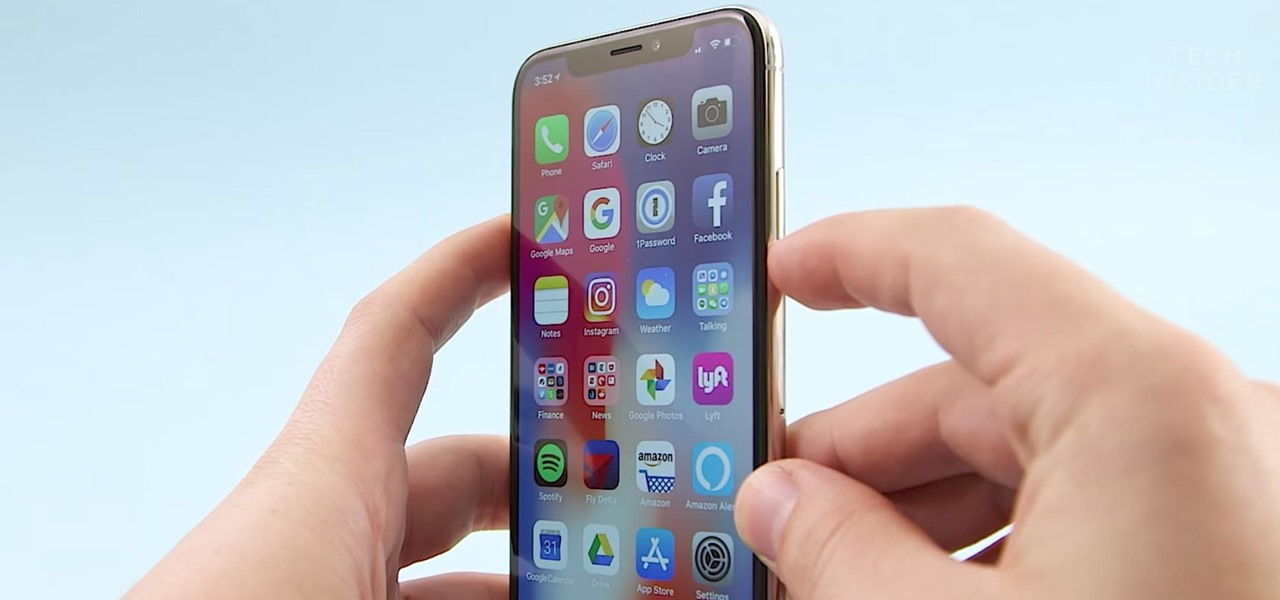
  1. Press the side button and the Volume Up button at the same time.
Side Button Cheat Sheet for the iPhone X (It's Not Just Power ...

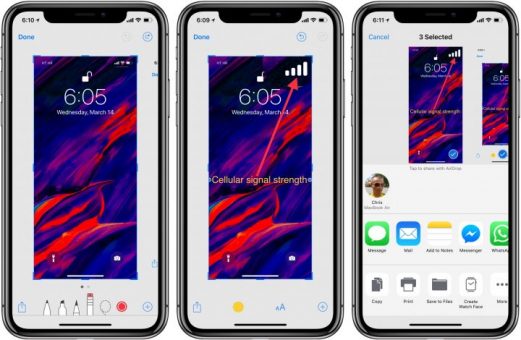
  1. A screenshot will be taken and a thumbnail will appear on the bottom left corner of your screen. Tap it to edit. Tap and hold to share it immediately.
  2. Tao the “Done” button on the top right corner of your screen. You will be prompted to Save or Delete the screenshot. Select the option of your choice. If you choose to save it, it will appear in your Photos app.


You now know how to take a screenshot on iPhone X, XS and XR. But with the removal of physical buttons from newer iPhone models, the process to take screenshots is subject to more modification in the future.
How to Take a Screenshot on iPhone all Model How to Take a Screenshot on iPhone X How to Take a Screenshot on iPhone XR How to Take a Screenshot on iPhone XS How to Take a Screenshot on iPhone XS Max XS and XR
Share. Facebook Twitter Pinterest LinkedIn Telegram Reddit Email
Previous ArticlePaytm became ‘Binod’ on Twitter, know what is the reason?
Next Article Sale of Realme Narzo 10 have started at 8 pm today, special offers will be available
Sayan Das

I have a penchant for writing on a variety of topics ranging from Technology to Psychology. With a Masters in Mass Communication and good command over the English language, I specialize in both fiction and non-fiction writing. When I am not blogging, I write and translate stories for children.

Related Posts

Dealing with Competitors Posting Negative Reviews

December 12, 2024

Unleashing the Thrill: A Deep Dive into RAJAGACOR – Your Ultimate Online Gaming Destination

January 2, 2024

How Architectural Tinting Can Enhance Your Building’s Energy Efficiency

October 17, 2023

Empowering Your Business with Jira Templates and Bug Ticket Templates

October 11, 2023

Exploring Font Styles: Unveiling the Power of Serif and Sans Serif Fonts

June 19, 2023

Testing Angular Web Applications: Strategies and Tools

June 17, 2023
Demo
Stay In Touch
  • Facebook
  • Twitter
  • Pinterest
  • Instagram
  • YouTube
  • Vimeo
Don't Miss

Beyond HPHT: Practical Thread Swaps to Meet the 2026 Preferred-Materials Target

By varshaAugust 27, 2025

HPHT lists help us say “no” to bad stuff. But stopping harm is only half…

Built-In Hygiene: Gral™ Protect Antimicrobial Threads for Wellness Wear & Uniforms

August 27, 2025

What Does the US-Issued Ban on State AI Rules Mean for Tech Innovation?

June 20, 2025

Dealing with Competitors Posting Negative Reviews

December 12, 2024

Subscribe to Updates

Get the latest creative news from SmartMag about art & design.

About Us
About Us
Our Picks

Dealing with Competitors Posting Negative Reviews

December 12, 2024

Exploring the Evolution of Auto Tint Technology: A Glimpse into the Future of Vehicle Enhancement

June 10, 2024

Top 25 Flowers to Send to Your Girlfriend and Celebrate Her Birthday in India

June 7, 2024
Facebook Twitter
  • Home
  • TERMS AND CONDITIONS
  • Submit Guest Post | Write For Us
  • Cookie Policy
  • DISCLAIMER
  • Contact Us
© 2026 SET NEWS BOX. All Rights Reserved. | scoopifyowl@gmail.com

Type above and press Enter to search. Press Esc to cancel.