



You may want to transfer some files from your PC to your more handy iPhone from time to time. The simplest way to do this is to use iTunes to sync the two devices. But what if you are not an iTunes user? We will learn here How to transfer files from Computer or PC to iPhone without iTunes in just 5 steps 2022.
Many important files lie on your PC. You may want to share them with others or keep them handy at all times for various reasons. But it is not feasible to carry your laptop everywhere you go. So how about having them on your iPhone? Thus this guide on How to transfer files from Computer or PC to iPhone without iTunes in just 5 steps 2022 will come in handy, in case you do not use iTunes for your backup.
There is another downside of using iTunes in case you think simply signing up to iTunes is a better solution. You can surely use iTunes for backup purposes. But syncing with iTunes overrides the data already on your iPhone. There are other issues too which may bother you. So this guide on How to transfer files from Computer or PC to iPhone without iTunes will invariably act as a savior for you.
Transfer files from PC to iPhone without using iTunes:
Using iCloud Drive
iCloud Drive is a part of your iCloud account. You should be signed up for an iCloud account when you start using an iOS device. Use iCloud for your backups. However, iCloud Drive is different from iCloud Backup. When you enable iCloud Drive, it acts like Dropbox. All your files stored in iCloud Drive can be accessed from any other device via iCloud.com.
You can either download and install iCloud on your PC or you can simply visit iCloud.com to access your files.
Follow these steps:
- Launch iCloud on your PC, or visit iCloud.com. Sign in with your Apple ID and password.
- Check the “iCloud Drive” option within the app or on the website.
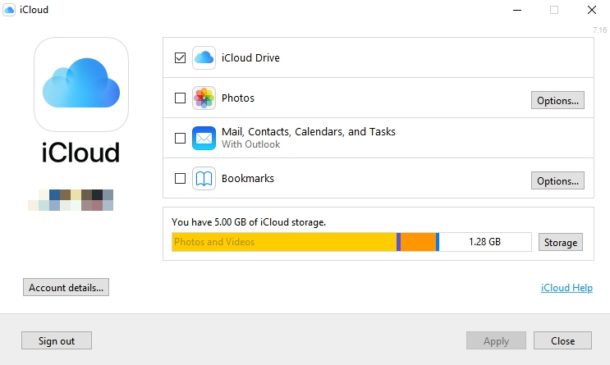
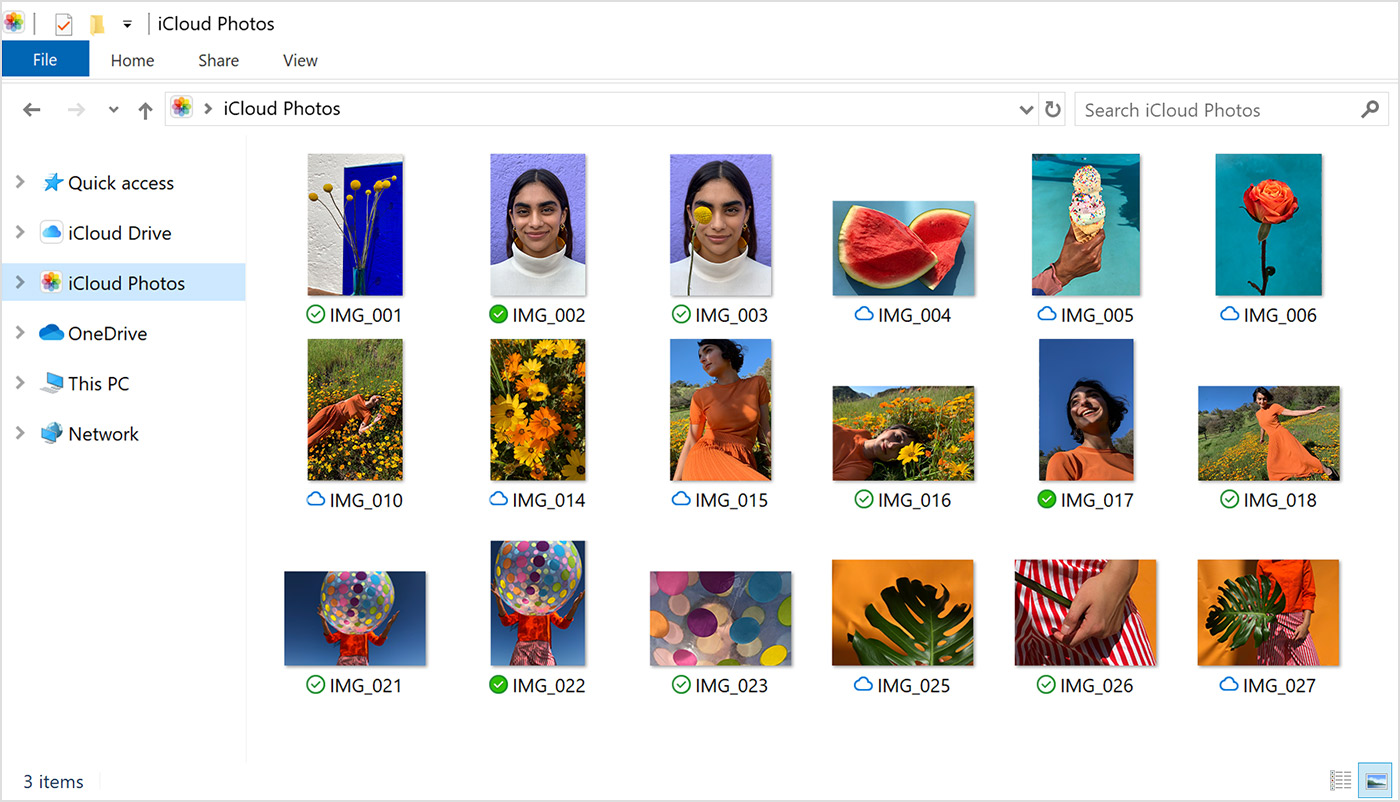
3. If you are using the application, go to This PC > iCloud Drive > Files on your PC. Then copy and paste or drag and drop them into the iCloud Drive folder. On the website, simply click the “Upload” button, and open the folder which contains the files you want to transfer.
4. On your iPhone, go to Settings > [your name] > iCloud > iCloud Drive.
![On your iPhone, go to Settings > [your name] > iCloud > iCloud Drive](https://www.imyfone.com/images/2017/03/turn-off-apps-in-icloud-drive.jpg)
5. Go to Files > Browse > iCloud Drive. You will now see the files on your iPhone.

Using iCloud Photos
This method will help you to transfer only photos from PC to iPhone without using iTunes. Using the iCloud Drive method above will help you to transfer all kinds of documents, but if you want to transfer only photos, then use the iCloud Photos option.
Log in to your iCloud account using your credentials on both devices, and then follow these steps:
- On your iPhone, go to Settings > [your name] > iCloud > Photos > iCloud Photos (turn it on).
- On your PC, if you are using the iCloud application for Windows, go to Photos > iCloud Photo Library > Upload new photos and videos from my PC. Go to This PC > iCloud Photos > Uploads and copy the photos you want to transfer in this folder. If you are using the website, simply click on “Photos,” and upload the photos you want to transfer.
The transferred photos will now appear inside the Photos app of your iPhone.
Using Dropbox or Google Drive
You can always make use of other cloud storage services like Dropbox and Google Drive to transfer files from PC to iPhone. Usually, these applications are paid, but they provide a free version too which should be enough for regular use.
To use Google Drive, simply log in with your Gmail username and password. Upload the files you want to transfer. Open Google Drive on your iPhone. Ensure you are logged in with the same Gmail ID. The uploaded files will appear on your iPhone too inside Google Drive.
To use Dropbox, follow these steps:
- Download and install the Dropbox app on your PC and on your iPhone. Sign in on both devices with the same credentials.
- On your PC, open Dropbox and upload the files you want to transfer.
- Open the Dropbox app on your iPhone and the uploaded files will appear there.
Using email
The simplest way to transfer files from PC to iPhone is to just email them to yourself. If you only have a handful of files to transfer and they can be attached to an email, then this is the easiest solution.
Email the files from your PC to yourself by entering your own email address in the “To” field. Open your email on your iPhone. The inbox will show the received email. Open it and download the attachments on your iPhone.
Using a third-party app
You can also make use of a third-party app like MobiMover to transfer files from PC to iPhone. This method will enable you to transfer all kinds of files between devices. Simply install the app on both your PC and iPhone and follow the instructions on the screen.
These are the top 5 ways of how to transfer files from PC to iPhone without iTunes. Depending on the number and type of files you want to transfer, choose the one that best fits your needs.
