Recover hidden messages with 3 tricks How to retrieve deleted text messages from iPhone
Did you accidentally delete an important text message on your iPhone? Did you go to your iMessage app only to discover that you may have unknowingly deleted a text message that you did not mean to? Well, we all make mistakes! But what do you do now? Here are the 3 methods that how to retrieve deleted text messages from iPhone.
Some of us delete text messages as soon as we read them to keep our inbox clean. Some of us allow messages to pile up in our inbox – some read, some unread – for months, sometimes even years. But if memory serves you right, there comes a moment when you want to check an old message that was sent by an old friend maybe. Or you simply want to jog your memory about something from an old text message that you may have deleted. Rest assured, those messages are still out there. Once you have learned how to retrieve deleted text messages from iPhone, you will no longer be bothered about deleting them, knowingly or otherwise.
Having said that, it is advisable that you delete old messages from your inbox periodically just to keep your phone clean and have enough memory for more stuff. The iMessage app also allows you to set an automatic inbox clear-up at regular intervals.
So if you need to retrieve an old message that you have deleted earlier, how do you go about it? Given below are the various methods to retrieve deleted text messages from iPhone.
How to retrieve deleted text messages from iPhone?
Using iCloud
Making use of the iCloud service by Apple is one of the best ways to retrieve deleted text messages from iPhone. You should have iCloud activated on your iPhone beforehand. It is recommended to sign up for iCloud as soon as you start using an iPhone or any Apple device.
- Go to “Settings” and tap on your profile that appears on top.
- Select iCloud > Manage Storage > Backups.
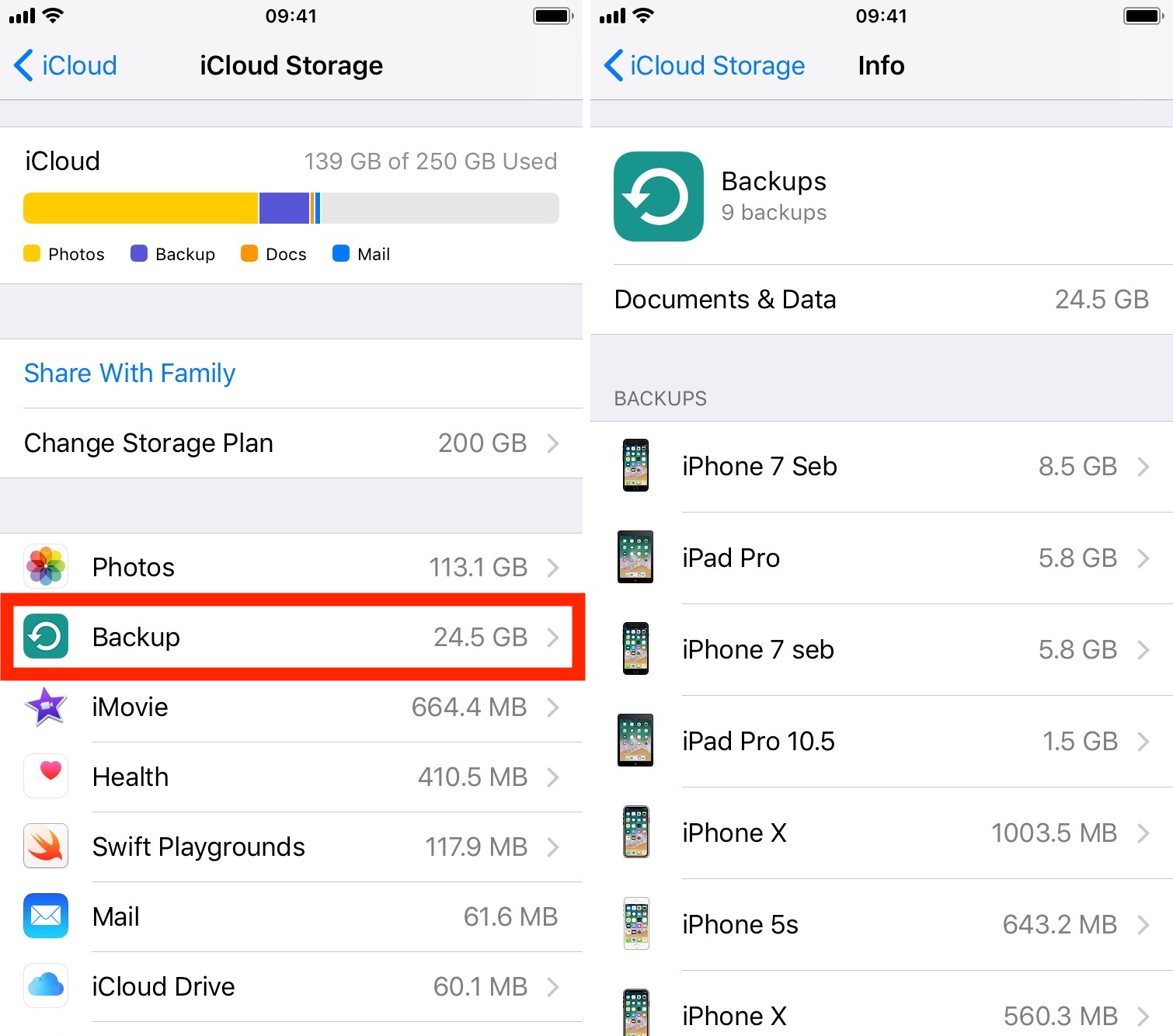
3. You will be able to see the saved backups. A timestamp will indicate when it was last saved, so you will know whether it includes your deleted messages.
4. At this point, a Factory Reset of your iPhone is required before you boot it up again with an older backup. Save your latest data including photos, videos, and newer messages that you want to keep. Note that any changes in the Settings menu made after the previous backup will also be lost.
5. Go to General > Reset > Erase All Content and Settings. Allow the iPhone to restart on its own – it may take up to a few minutes.

6. During the boot-up, you will be prompted to restore your device from an old backup. Select the backup you want to use to restore your iPhone.

This process will work just fine unless you are worried about losing some of your latest data and do not wish to overwrite your iPhone. Sometimes, you also may not find the appropriate backup that will restore your deleted messages. Thankfully, there are other solutions for such cases.
You can also use the iCloud website to retrieve deleted text messages from iPhone:
- Visit iCloud.com and log in with your Apple ID and password.
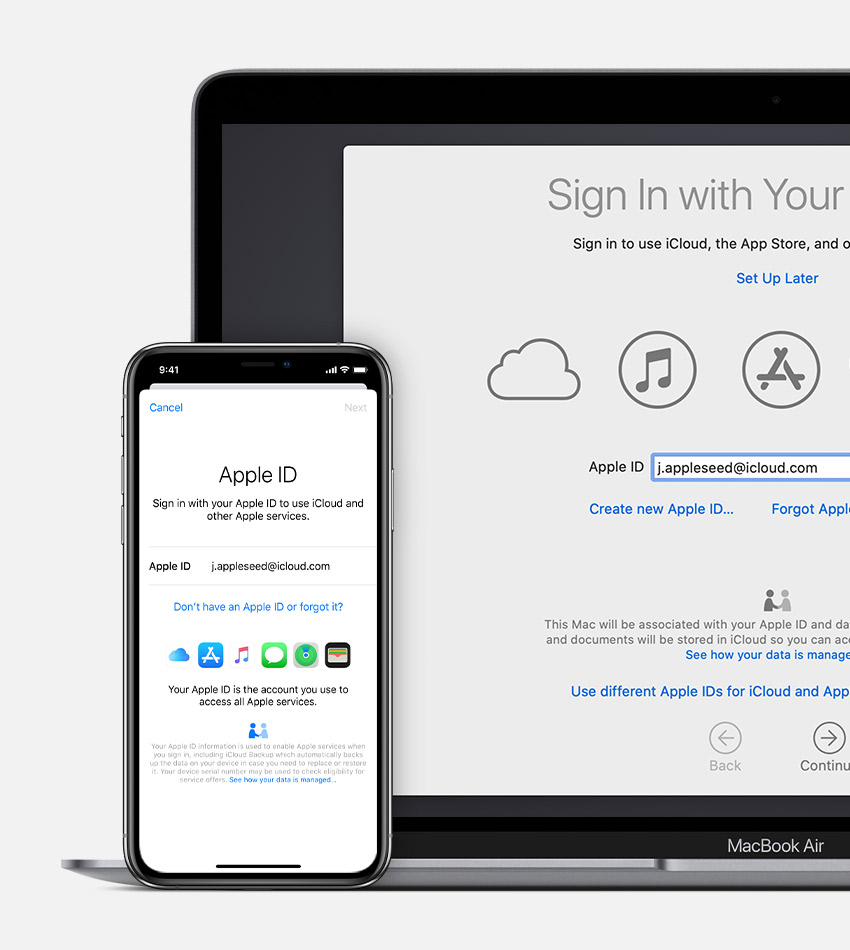
2. Click on the option “Text Messages” which should appear if you have backed up your messages using iCloud.
3. Select the messages that you want to restore.
4. On your iPhone, go to Settings > [your name] > iCloud
5. Make sure that your “Text Messages” option is turned off.
6. On the popup window, check the option “Keep On My iPhone.”
7. Turn “Text Messages” back on.
8. Tap “Merge” and allow a few minutes for the deleted messages to be restored to your iPhone.
Using iTunes
It is possible that you have chosen not to use
iCloud to backup your data but use iTunes instead for the purpose. If you have a backup of your iPhone data on your PC or Mac, then this method will help you
to retrieve deleted text message from your iPhone:
- Plug your iPhone to the computer that has the backup. Open iTunes.
- Select the iPhone icon on the left-hand corner.
- Click on the “Restore backup” option.
- Allow a few minutes as your backup is restored to your iPhone. Note that this will overwrite the data already on your iPhone. The deleted messages in your backup will now appear on your iPhone.
Using third-party apps
The final option if the iCloud and iTunes options fail is for you to employ third-party apps to do the job. Note that these apps are not free and there is no guarantee that you will be able to retrieve your deleted messages successfully.
This option will work if you have deleted a text message without a reliable backup and have not carried out a Factory restore or restored a backup where your iPhone may have been overwritten. Make sure you use only reliable and reputed apps for this purpose. Check the reviews and expert opinions online before making a purchase. Some of the well-known apps you can try to retrieve deleted text messages from iPhone are:
- Enigma Recovery
- PhoneRescue by iMobie
- Tenorshare iPhone Data
- WonderShare Dr.Fone for iOS
This is your last resort to retrieve lost messages, and still, there is no guarantee.
If this method fails, you can contact your phone provider and ask if they keep backup of your data. Some companies do, and if you are lucky, you can ask for access to them.