



How to view WiFi passwords on iPhone / Android / PC / iPad / Windows 10 – 2021
Many digital devices we are using today connect automatically to the Wi-Fi network. Since the WiFi password has more characters, it’s difficult to remember it. So can you see the Wifi password on your phone or How to view WiFi passwords on iPhone?
iPhones haven’t the feature to show the WiFi password easily. So it’s a bit complicated. Here I have explained that how to see typed WiFi passwords on iPhone in different methods.
View saved WiFi password iPhone 2021
- First, go to Settings
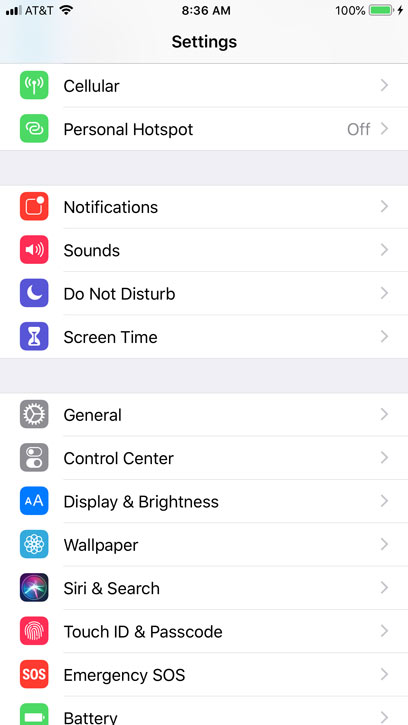
- Click on Wi-Fi
- Click the “i” next to your network.

- Hit and hold the number next to Router
- Choose Copy
- Paste it into your browser.
- At last, access to your router’s username and password

- Choose Wireless settings.
Next, open a web browser on your iPhone. Here you can use any web browser on your iPhone, like Safari or Chrome.
It’s important to paste your router’s IP address into the search bar, and click Go on your keypad. To complete this, tap and hold the address bar at the top of your browser and choose the Paste option.
But sometimes, you may see pages that show as “This Connection Is Not Private,” tap Advanced > Proceed. This warning should not be considered so much. The reason is your router is on your local network, and there is a security built-in.
After that, use your router’s username and password and tap Sign In. Your router’s username and password will not be similar to your Wi-Fi username and password. How to show password on iPhone?
Sometimes you can check your router’s username and password given somewhere on your router or in its manual.
Read More: How to Protect Our Smartphone | Smartphone hacks 5 easy solutions to problems!
You can see a menu on the left side of your display. This name can be changed according to the type of your WiFi router. You may have to click through other buttons to find the primary or security settings of your wireless router, which usually has your WiFi password.
If you need, you can change the WiFi password for a simple one. Remember to save once you complete the changes.
Now you have the answer for how to find a wifi password on an iPhone without jailbreak. The exact answer will go for the question of how to see a wifi password on an iPad.
First of all, connect the device. After that, open the WiFi settings on the widget to get the password. A window will show the machine sharing the password asking if you want to share the password with another device. Click on share Password then.
View saved wifi password android
How to find WiFi Password on Android 10 or higher
No need for any app for this procedure. Just quickly go through the mentioned step one by one to find a WiFi password in Android 10 or higher.
Locate WiFi Settings
- As the very first step, search your phone’s Settings menu
- Go to network & internet.
- Select the “WiFi” submenu.
- Go ahead and choose it.
View Wi-Fi Passwords
Inside the WiFi settings page,
- Scroll past the list of current networks
- Choose the “Saved networks” opinion.
- You can see a list of complete Wi-Fi networks your phone remembers
- Choose one from all
Now,
Select the “Share” button towards the top of the screen. Then you can scan the fingerprint or face recognition. It may ask for the PIN or password as well.
After completing it, you may see a QR code showing the network’s SSID. Quickly you will be able to scan it from another device using a QR scanner if you want. The password is also listed in plain text under the QR code.
Your next question will be how can I share my iPhone password?
Then let’s go to learn to view saved wifi password android.
Android 9 & Lower (Root Required)
If you have a phone with Android 9 and lower, the only way to see saved Wi-Fi passwords is via a root app.
First of all, Install WiFi Password Viewer
If you search the google play store, you will be able to find many apps that claim to present your WiFi passwords.
View saved WiFi password
- Open the WiFi Password Viewer
- The app will ask for Superuser access.
- Tap “Grant” on the popup
- After that, you’ll be taken to a list containing all of the Wi-Fi networks that you’ve ever connected to
- Each shows a password beneath it.
If you see an extensive list of WiFi passwords, you can search for a particular Wi-Fi network by using the search button in the top-right corner.
When you want to share these passwords with other devices, there are few options.
- Begin with tapping any entry in the list
- Then a small menu will pop up.
- From here, you can click “Copy password” to copy that network’s password to the clipboard. Then it would be easy to paste into your favorite texting app.
- Send to the other device then.
- Then you can skip a step and tap “Share,”
- Choose your favorite texting app from the menu that appears to send the password.
Finally, you can also tap “QR” to make the app generate a QR code with the network info.
How to see WiFi password on Windows 10
In this case, you will be able to find it if you have another PC already contacted to your Wi-Fi network. On a Windows PC that’s connected to your Wi-Fi network, follow the steps given below.
On Windows 10
- Choose the Start button
- Select Settings
- Choose Network & Internet
- Tap Status
- At last, go to Network and Sharing Centre.
On Windows 8.1 or 7
- Search for Network
- Select Network
- Sharing Center from the list of results.
I hope you have learned a new thing about wifi password settings. If you still have any questions or clarification, please leave a comment.
