



Now Your Worry Is Over – The Best Options on How to Delete A Blank Page In Google Docs
When you use Google Docs, you have to get blank pages when creating a document. Sometimes you may have unknowingly clicked ‘Ctrl + Enter’when typing, or you copied something from a place with different formatting. In this manner, the documents with unwanted blank pages can be seen as unprofessional and not suitable. Therefore searching for the best options on how to delete a blank page in Google Docs is essential.
You don’t need to worry; removing these types of blank pages in Google Docs is very easy. Since there are few more methods to do this action you can choose any according to your preference. I’ll show you that how we can delete blank pages easily in Google Docs, with a few important tips about the app in general.
Many things come under the formatting. You may spend more hours to get a satisfactory final document. For that, you may take every possible effort to complete it as perfectly as possible. When you realize that there’s an extra page hanging around somewhere, probably you try to remove it. That additional blank page could be the thing standing between you and a higher letter grade, a promotion, or even a book deal — you never know. It can change a lot of things in your document. Sometimes it may change the real meaning of your document.
Methods how to delete a blank page in google docs
Change page breaks
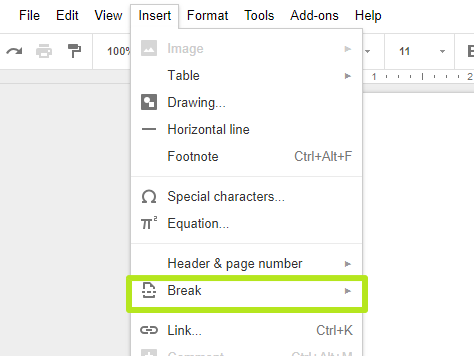
Usually, page breaks don’t happen. But there is a probability to occur. Sometimes you might not remember navigating all the methods to include and then adding a page break, but that isn’t the only way it happens.
Simply you can ‘Ctrl + Enter to add the shortcut to insert a page break. When your pinky (or any other finger) hovers over the ‘Ctrl key, you mayinclude a page break by suddenly. With those procedures, you can immediately delete the new page break, but you would not be able to delete it or use Backspace if it’s in the mid of the paragraph.
Search for the custom spacing
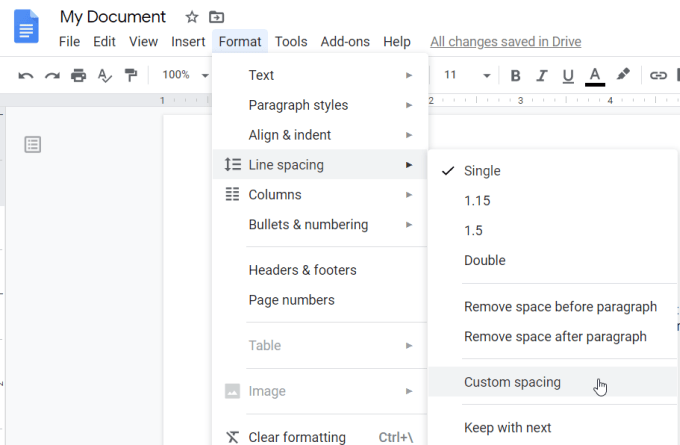
This is also the best option to delete a blank page from google docs. When Google Docs is asked to insert an extra amount of space after a paragraph, it tries to add new pages at the end of the document automatically. To check if this custom spacing is to blame, follow the below I mentioned steps.
- Navigate to Format within the toolbar
- Hover over Line spacing.
- A menu pops up.
- Hit Custom spacing
- Try changing the value after the paragraph to zero.
Hit the deletion
You may have tried hitting Backspace, most of the time it will not work. You come back to the previous page. This is the normal way that both Google Docs and MS Word work. Anyway, you most of the time haven’t tried hitting Delete. In this case, the delete button will immediately delete the blank page in google docs. Let’s see how it happens.
First of all, put your cursor at the end of the previous page and click the Delete button.
When it doesn’t act, try to highlight the blank page and click the deletion button again. In most cases, the above solution will not work properly. Use the method, which is why you should always use that method first before exploring other ways.
Try to change the margin

When your margin settings are too wide and large, Google Docs usually gives their opinion to add space at the end of the text but finally; it has added a blank page. In case of this first you can
- Go to File
- Select Page Setup
- In the Page Setup window, change the margins
- Make them smaller
In my point of view, this is a kind of easy option how to delete a blank page in google docs.
Look for additional tricks
The valuable methods which I mentioned earlier give information about what you can do to remove an unwanted page in Google Docs. Just imagine if you can prevent it from happening in the first place. So here I have given few tricks, which support format your Google documents better.
Clear Formatting

This is a simple method that paves the way for you to on any text and layout preferences within your document to their false ( default ) settings. In case of using a clear formatting method, just try to do the below I mentioned steps.
- First, select the Format tab in the Google document toolbar
- Then click clear formatting.
- Reset the formatting above for your selected section or the entire document
- Adjust the appearance, formatting characteristics, and layout.
Use Section Breaks

A document without section breaks is useless. We can’t consider those documents as“well-formatted” documents. Probably, these would add more organization to your work. You can use the following steps to do the section break.
- Navigate to entering the toolbar, then hitBreak.
- You would be able to select the type of break you require from the break menu.
- Page break makes a new page, Section break (continuous) starts a new section on the same page and Section break (next page) switches to the next page to add a new section.
In conclusion, Google Docs can be considered as a small and simple web-based app, which offers several formatting methods, which can also break your pages’ organization and spacing. Unwanted blank pages change a well-organized document and also make it difficult to read. You would be able to find out why you see unwanted blank pages and use the formatting trick which I mentioned above to delete a blank page in google docs. Then you can finally clean it up with suitableGoogle Docs formatting knowledge.
